3D Studio
Interactive 3D Simulators
Four browser-based simulators covering the parts of knife making where the geometry and the timing are hardest to picture. Every one has a static reference fallback, so nothing breaks if your device cannot render 3D.
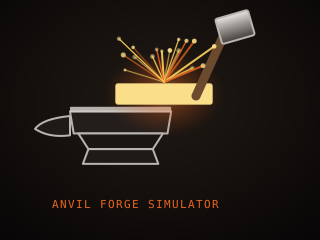
Anvil Forge Simulator
Hammer a hot billet on a 3D anvil. Control the strike force, the temperature and the hammer face, and watch the steel deform — then check the shaping score and export the profile.
- Drag to rotate, scroll to zoom
- Sliders for force, temperature and hammer face
- Live billet dimensions and a shaping score
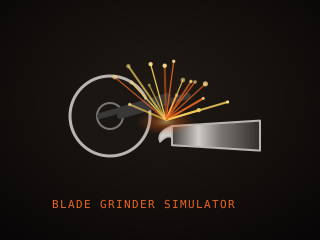
Blade Grinder
Grind a bevel on a 3D blade and watch the cross-section change in real time. Set the grind angle, belt grit and pressure, and see when the edge gets too hot.
- Four grind types: flat, hollow, scandi, convex
- Live cross-section view
- Overheat warning when the edge burns
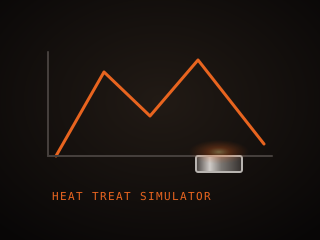
Heat Treat Simulator
Plot a full heat-treat cycle and run it. Pick a steel, set the austenitizing and tempering temperatures, choose a quench medium, and watch the steel change colour as the curve plays.
- Five steel presets
- Draggable curve control points
- Crack-risk warning for an over-fast quench
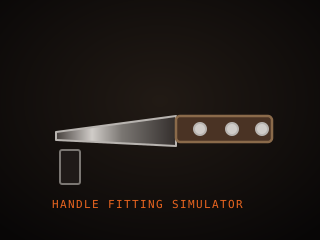
Handle Fitting
Assemble a handle piece by piece on a 3D knife — scales, drilling, pins, shaping and oil. Swap materials and pin types and watch the balance point move.
- Five-step assembly with undo
- Material and pin switching in real time
- Live balance point and weight
Performance notes
The 3D libraries load only when you open a simulator — the rest of the site never pulls them. Each scene is kept under roughly 20,000 triangles with textures capped at 2048 px, and the renderer drops resolution and shadows automatically if the frame rate falls below 30 fps for three seconds. Rendering pauses entirely when the tab is hidden.
- On a phone, simulators open in their static reference view by default. There is a button to load the 3D version if you want it.
- If WebGL is unavailable or the context is lost, the tool switches to the static view and keeps working — no blank canvas, no error.
- If you have “reduce motion” set in your operating system, auto-rotation, spark particles and transitions are turned off.
Controls
- Rotate: drag with the mouse or one finger.
- Zoom: scroll wheel or a two-finger pinch.
- Pan: disabled on purpose — it makes these small scenes disorienting.
- Keyboard: every slider and button in the control panel is reachable with Tab, and the sliders respond to the arrow keys.
- Reset: each tool has a reset that restores the starting state.